Callpilot.ai tour
This page gives you a guided tour of the main areas of the CallPilot.ai web application.
It is useful for new users who want to understand “what lives where” before diving into detailed guides.
Home & dashboard
After you sign in, you typically land on a home or dashboard view.
Here you may see:
- A summary of active campaigns.
- Recent volumes (calls/messages).
- Key KPIs (e.g. success rate, contact rate, response rate).
- Shortcuts to create a new campaign or view recent activity.
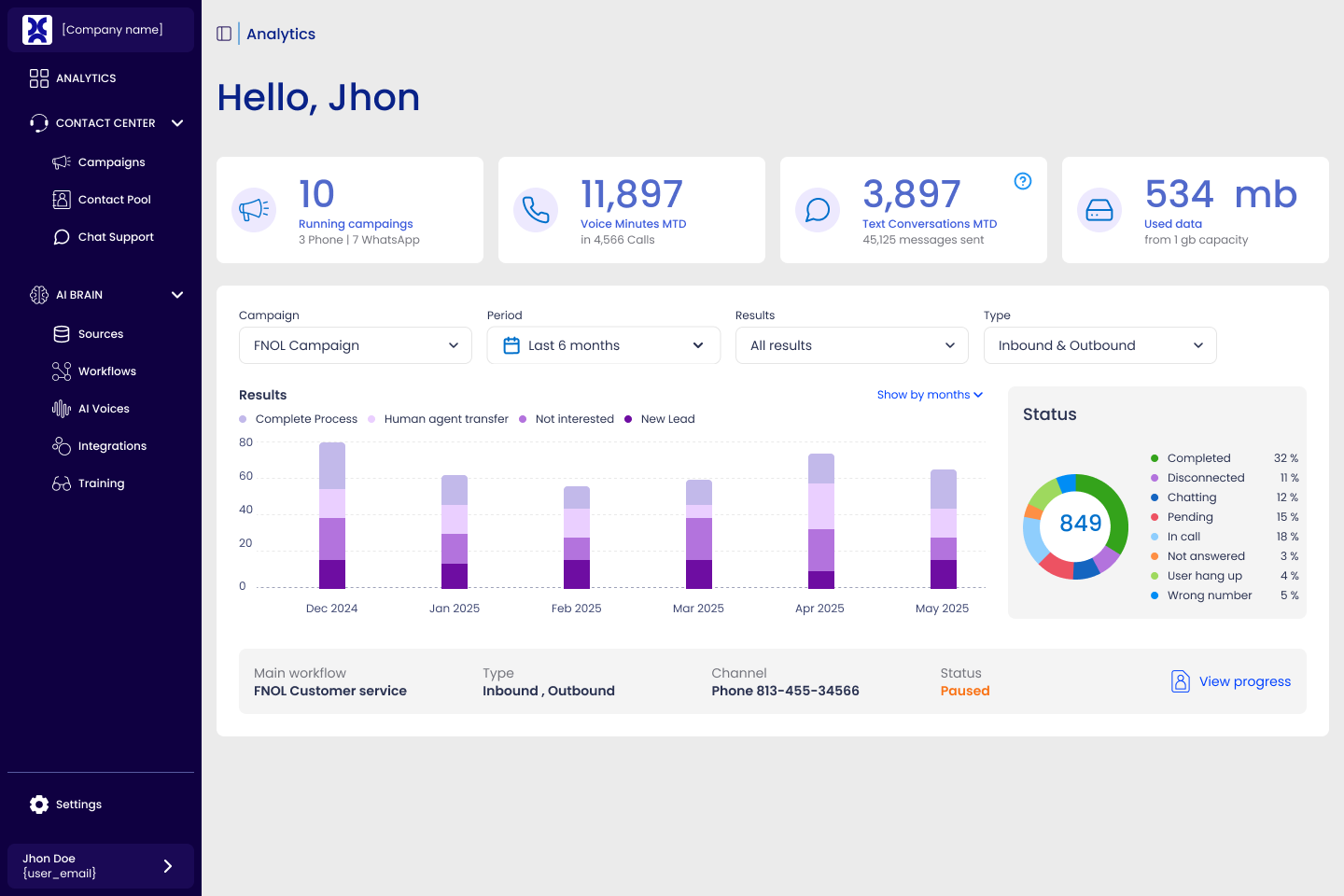
Use this area to quickly check if everything looks healthy and to jump into specific campaigns.
Campaigns
The Campaigns section is where you:
- See a list of all campaigns (active, scheduled, completed).
- Filter by status, channel (voice/WhatsApp), or date range.
- Open a campaign to inspect its configuration and results.
Typical actions:
- Create a new campaign
- Choose channel (voice/WhatsApp).
- Select a flow.
- Assign a contact list.
- Configure schedule and sending rules.
- Pause or resume existing campaigns.
- Review performance metrics at campaign level.
(Optional screenshot here)

Workflows
The Workflow section is where you design the logic of interactions.
Here you usually:
- Create new flows from scratch or from templates (coming soon).
- Edit existing flows (messages, questions, conditions, transfers).
- Reuse flows across multiple campaigns.
- Test your workflow with call/message widget testing.
A workflow editor typically allows you to:
- Add nodes:
- intructions
- conditions
- transfers to agents or external systems
- connect to other workflows
- call webhooks
- end paths
- Connect nodes to define the path of the conversation.
- Set the core instructions that shape the conversation’s overall behavior and tone.
- Test or simulate the workflow before using it in a campaign.
- Select Knowledge Base sources to provide the workflow with accurate, relevant information.
(Optional screenshot here)

Contacts Pool
In Contacts you manage who your campaigns will reach.
Common capabilities:
- Create and edit contact lists.
- Add contacts manually or import them from a file (e.g. CSV).
- View basic contact information:
- Phone/WhatsApp number.
- Name or identifier.
- Optional tags or metadata.
In some setups, contacts may also be synced from an external CRM or system via integration.
(Optional screenshot here)

Channels
The Channels section is where you configure how CallPilot.ai communicates with your customers.
Depending on your setup, this may include:
- Voice
- Phone numbers used for outbound and inbound calls.
- Caller ID configuration (where allowed).
- WhatsApp
- Sender numbers or business accounts.
- Template management (if applicable).
Typical tasks:
- Confirm which numbers are available for campaigns.
- Check connectivity or configuration status of each channel.
- Request or configure new channels as your usage grows.
(Optional screenshot here)

Reports
The Reports area lets you see how your campaigns are performing.
You can usually:
- View metrics at different levels:
- Global, per campaign, per channel.
- See:
- Volumes (attempts, successful contacts, failures).
- Outcomes or dispositions.
- Response expected results (e.g. YES/NO, survey scores).
We also support:
- Send schedule reports to your email.
- Incorporate campaign finding to your business API.
- Integrate your report with MSF.
(Optional screenshot here)

Where to go next
If this is your first time here, we recommend:
- Reading What is CallPilot.ai? if you haven’t already.
- Following the Quickstart: Your first campaign guide.
- Sharing this Callpilot.ai tour with new supervisors and admins so they can briefly explore each area before training.